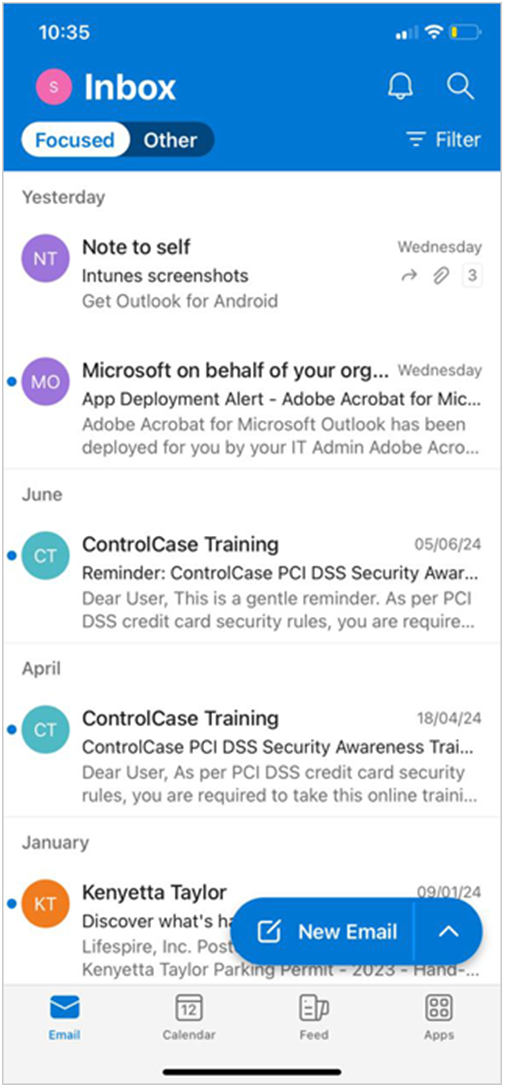



 Enroll an iOS Device with Microsoft Intune
Important Notes:
- Outlook iOS mail app must be uninstalled prior to Intune Enrollment.
- On your device, go to the App Store and tap to open it.
-
Next, search the App Store looking for the Intune Company Portal. The following screen will be displayed
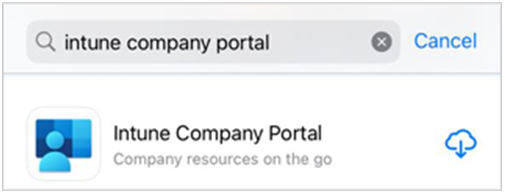
- Tap the application download icon.
-
This will download and install the Intune Company Portal. The following screen will be displayed once the installation is complete.

-
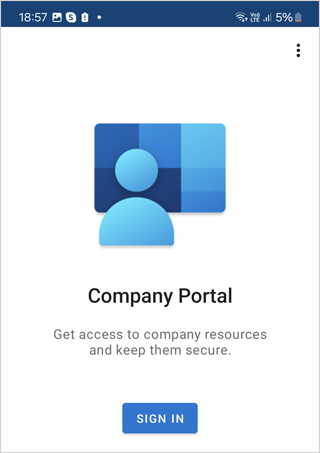
Tap Open button. The Sign in screen will be displayed as shown below:
-
Tap Sign in button. The next screen will appear where you have to enter your email address as shown below:
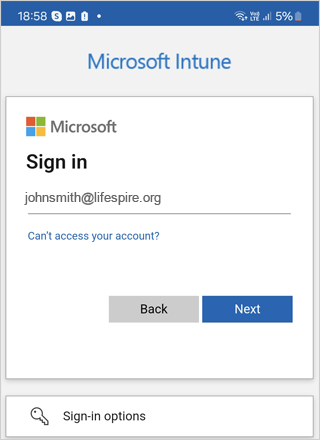
- Enter your email address and then tap Next button.
-
The next screen will appear where you have to enter your password as shown below:
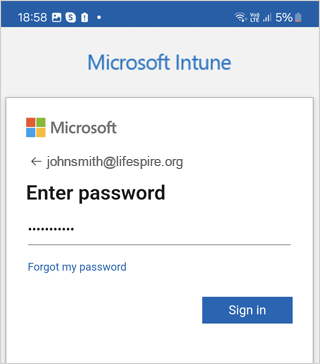
- Enter your password and then tap Sign in button.
-
You will see the following screen about the notifications.
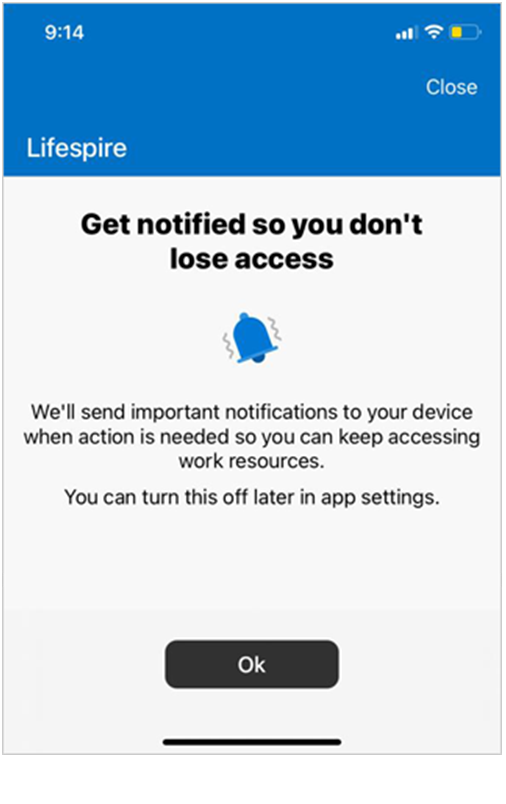
- Tap Ok button to accept and continue.
-
Next, you will then be directed to the Lifespire Access Setup screen as shown below:
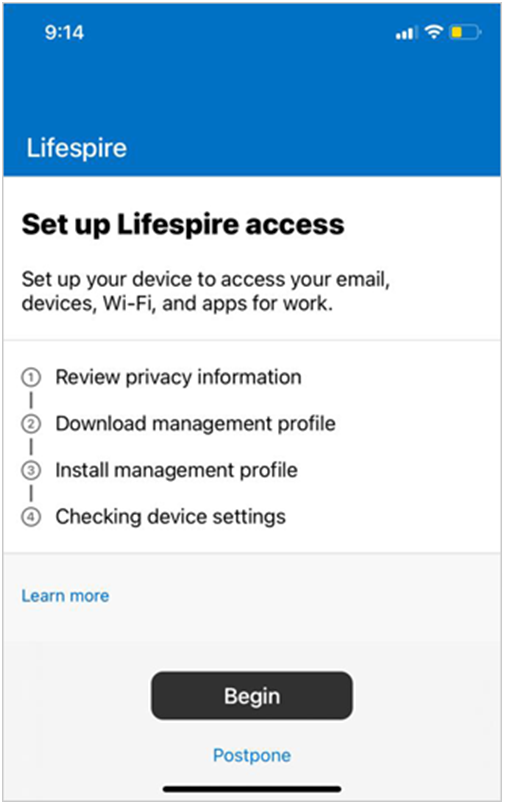
- Tap Begin button.
-
The next screen displays the privacy information that Lifespire can see and that Lifespire can’t see.
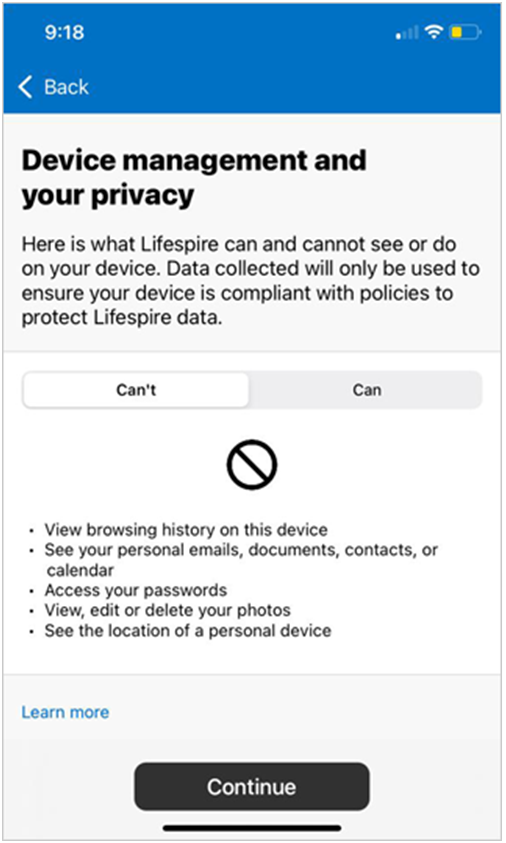
- Tap Continue button.
-
Next a screen will appear for downloading management profile as shown below:
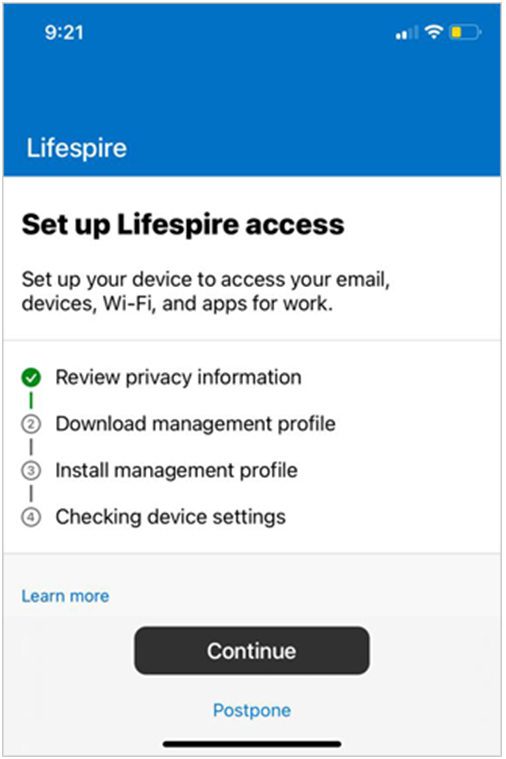
- Tap Continue button.
-
Next a screen will appear displaying an Authentication Code as shown below:
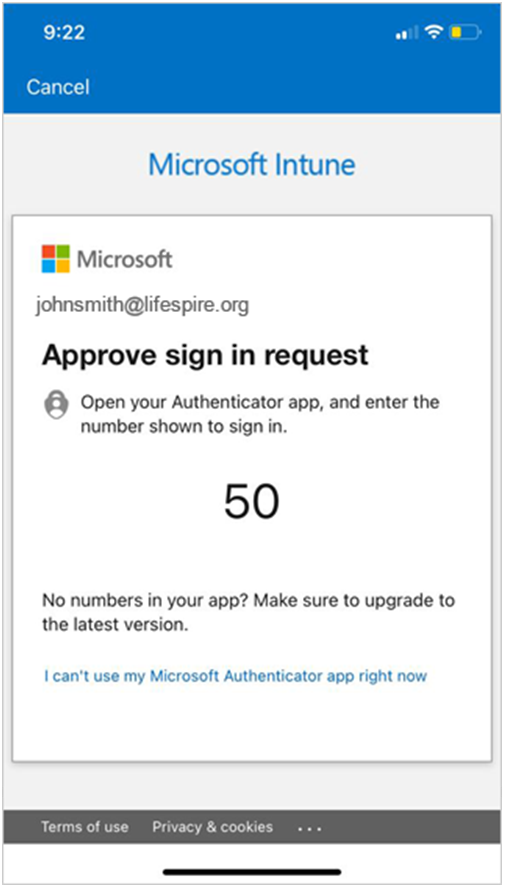
- You will have to use this code in the Microsoft Authenticator App.
-
A pop-up message will be displayed seeking your approval for profile download as shown below:
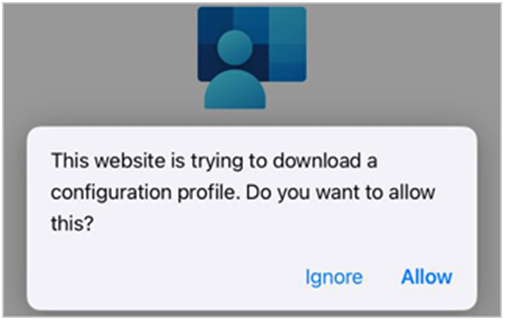
- Tap Allow to start downloading the profile.
-
Next a screen will appear for installing management profile as shown below:
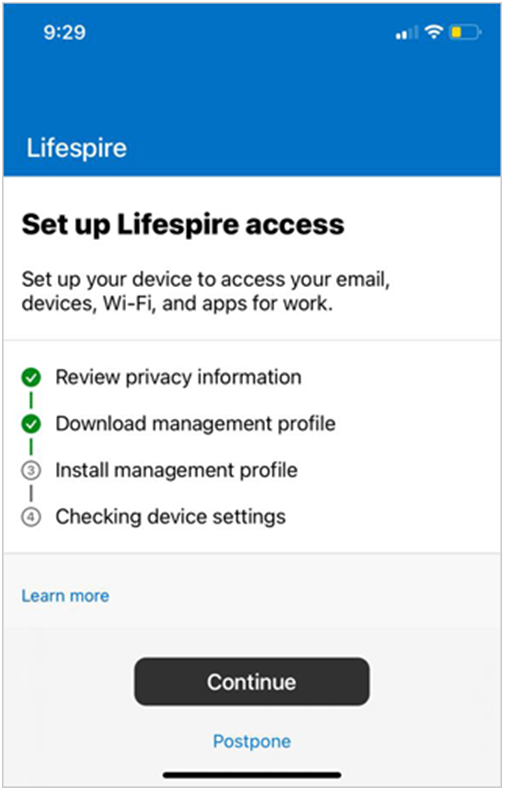
- Tap Continue button.
-
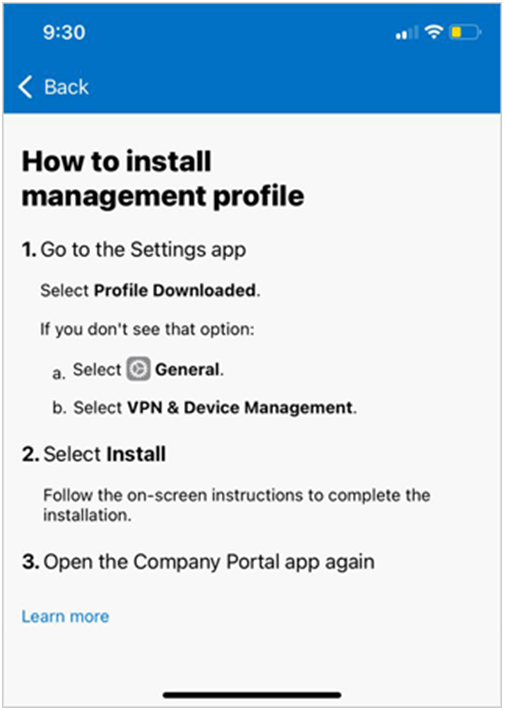
A screen will be displayed giving instructions for installing the management profile using the Settings App as shown below:
-
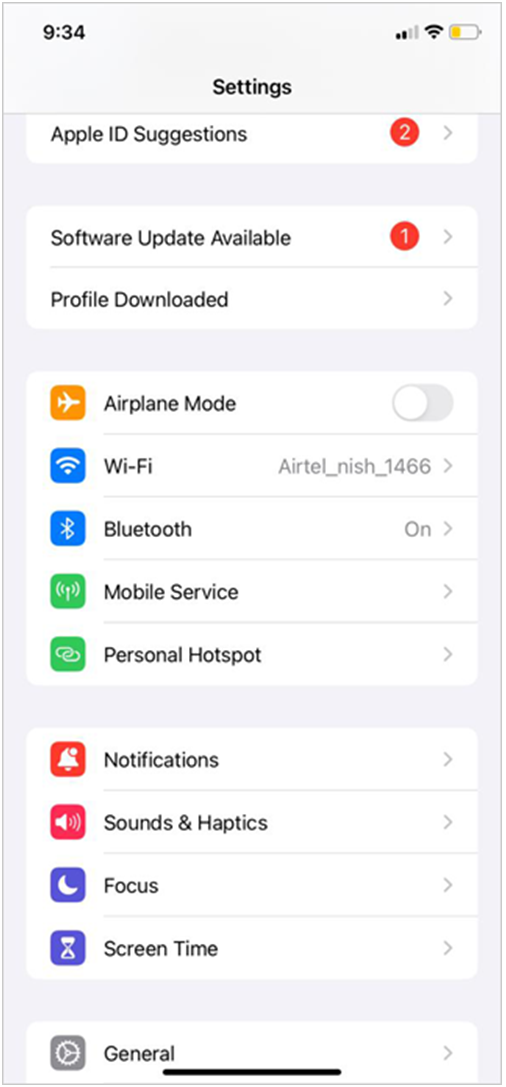
The Settings screen is shown below:
-
Tap to select the downloaded profile. This will open the screen shown below:
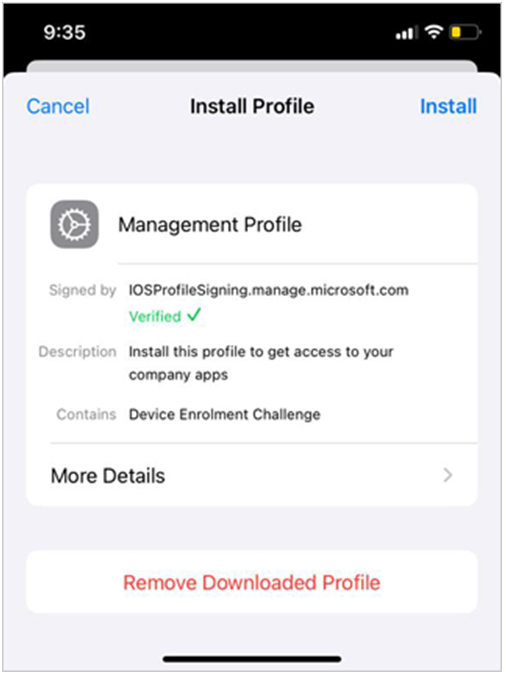
- Tap Install to start the installation of management profile.
-
Next a screen will be displayed asking you to enter the device passcode as shown below:
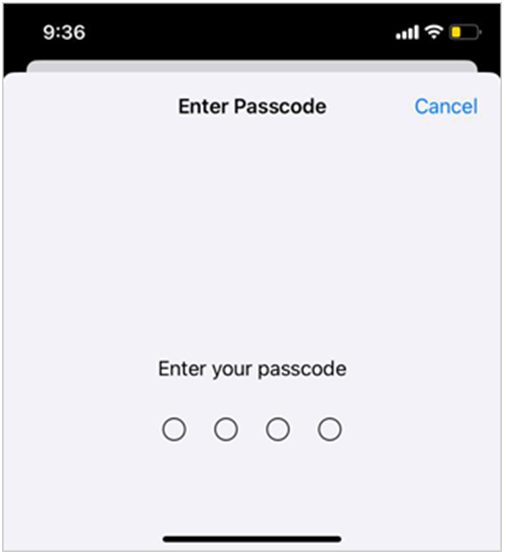
- Enter the four digit device password.
-
The profile installation will start. This can take a few minutes to complete.
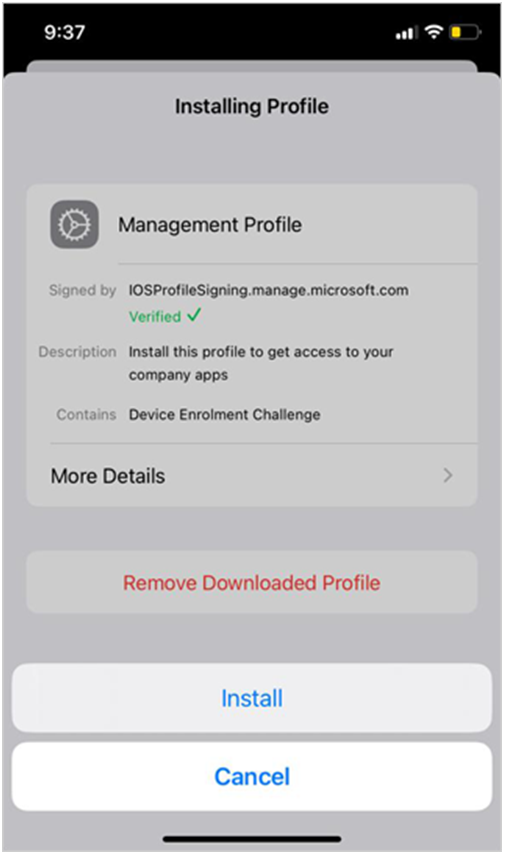
-
Once your profile installation has completed, you will be presented with the following screen that will install the Root Certificate.
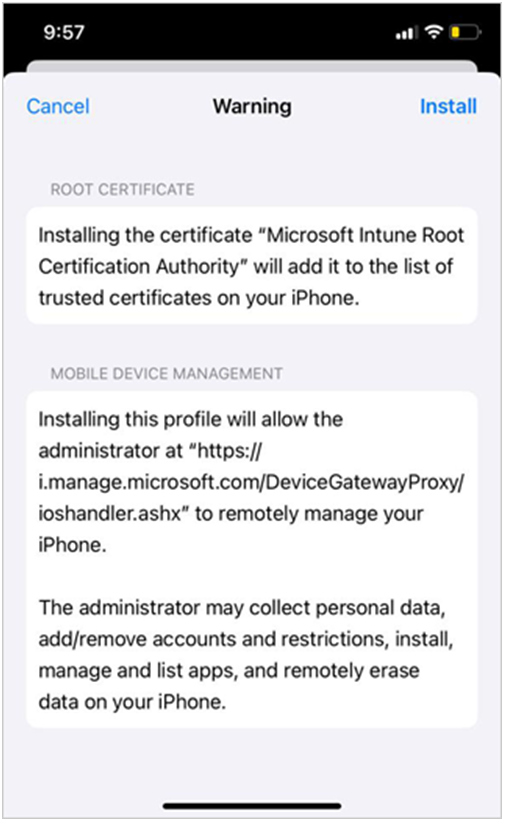
- Tap Install.
-
Next you will asked to confirm if you will allow your device to be remotely managed as shown below:
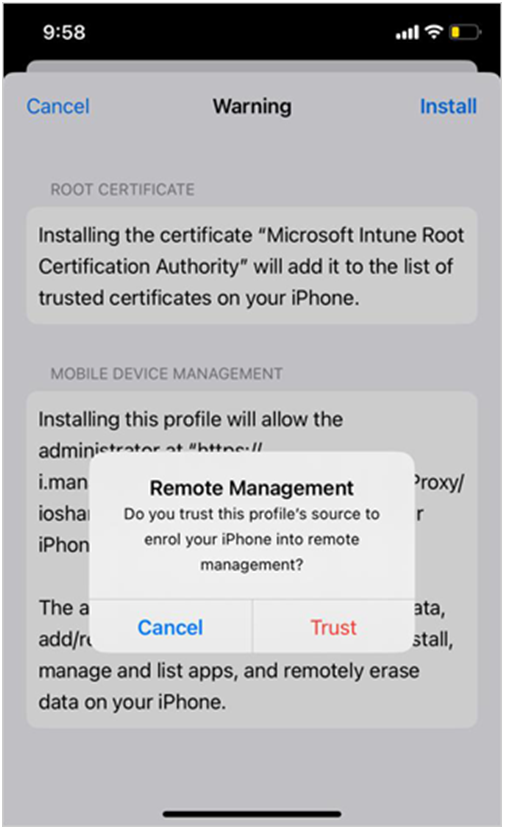
- Tap Trust to confirm.
-
This will complete the profile installation and your device will be added to the Company Portal (Intune). The following screen will be displayed:
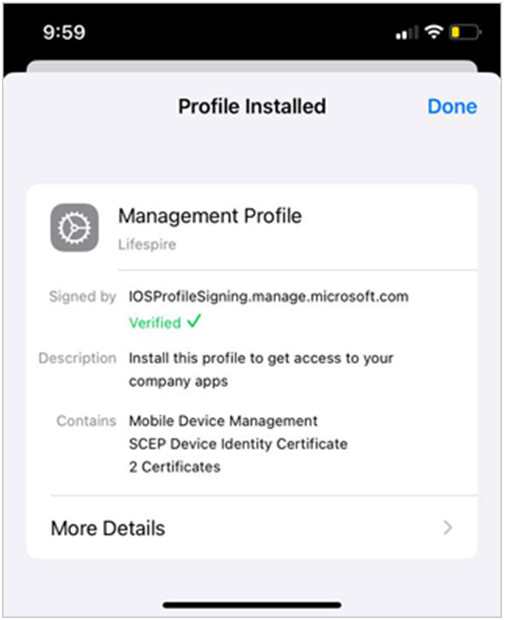
- Tap Done .
-
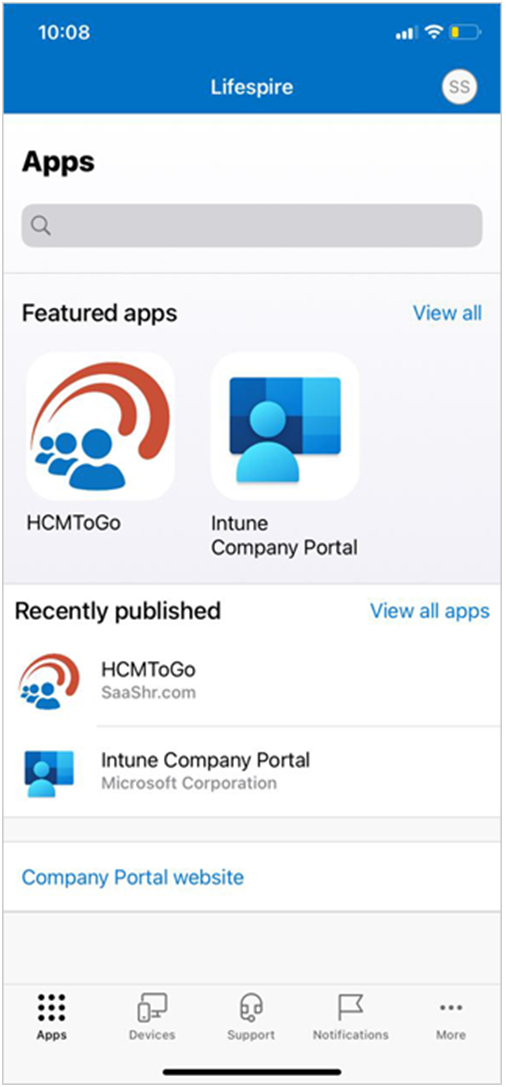
This will complete the installation and the following screen will be displayed:
-
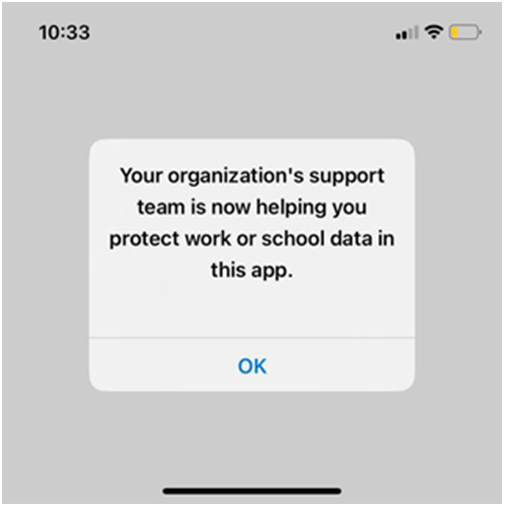
You can now install the iOS Outlook on your device. Once the installation is done, the following screen will be displayed.
-
You can now start using the iOS Outlook on your device.