


 Enroll an Android Device with Microsoft Intune
Important Notes:
- The use of the native Android Mail app is not supported.
- Outlook Android mail app must be uninstalled prior to Intune Enrollment
- On your device, go to the Google Play store and tap to open it.
-
Next, search the play store looking for the Intune Company Portal. The following screen will be displayed:

- Tap the application icon or directly tap Install.
-
If you tap the application icon then the following screen will be displayed:
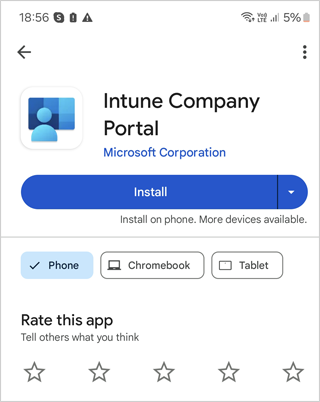
- Tap Install button.
-
The application download will start. Once it completes the download the screen will change to:

-
Tap Open button . The Sign in screen will be displayed as shown below:
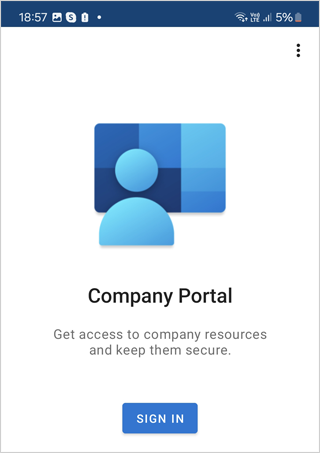
-
Tap SIGN IN button. The next screen will appear where you have to enter your email address as shown below:
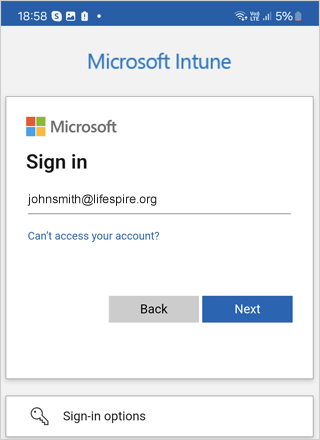
- Enter your email address and then tap Next button.
-
The next screen will appear where you have to enter your password as shown below:
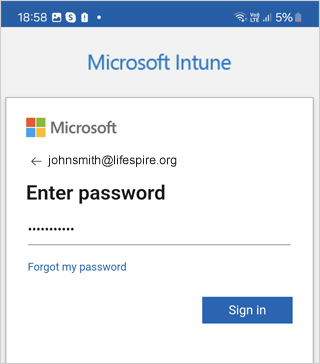
- Enter your password and then tap Sign in button.
-
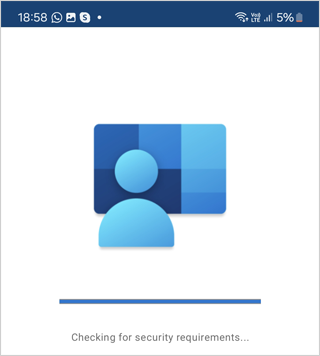
You will see the following screen informing you that the enrolment is in progress.
-
Next, you will then be directed to the Lifespire Access Setup screen as shown below:
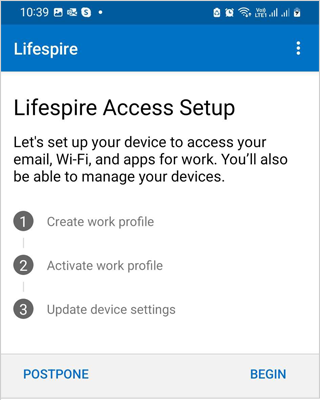
- Tap BEGIN.
-
The next screen displays the privacy information that Lifespire can see and that Lifespire can’t see.
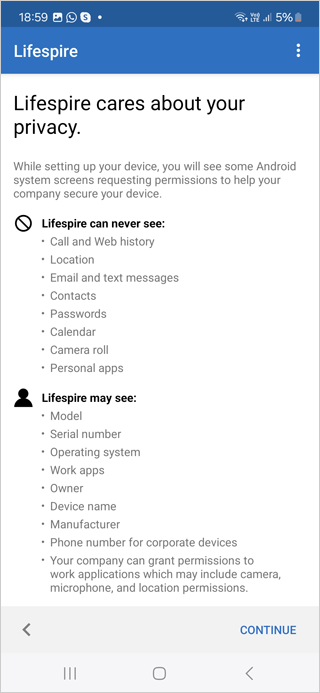
- Tap CONTINUE.
-
Next a screen will appear displaying an Authentication Code as shown below:
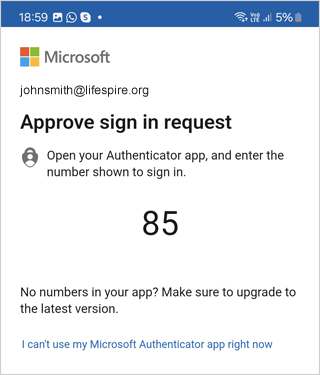
- You will have to use this code in the Microsoft Authenticator App.
-
The Profile Setup will start and you can see the progress as shown below:
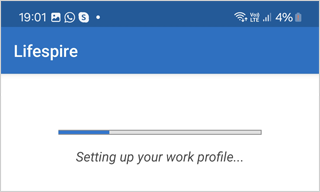
-
Next the screen to Setup a Work Profile will appear.
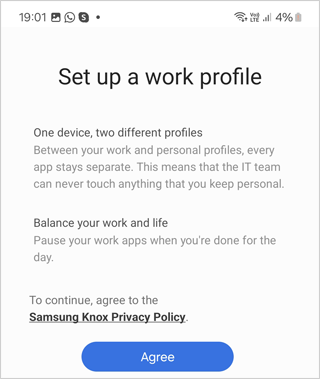
- Tap Agree button to continue.
- Your device will setup the work profile. This can take a few minutes to complete.
-
Once your work profile has completed, you will be presented with the following screen that will activate the profile and update device settings (device encryption, etc).
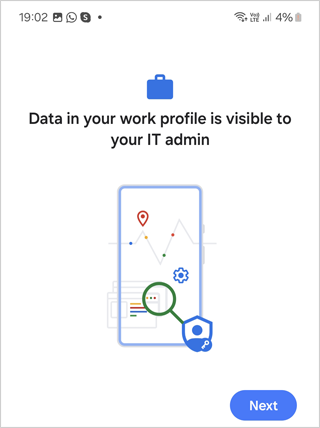
- Tap Next button.
- Your device will be added to the Company Portal (Intune).
-
On the device workspace, at the bottom of the screen, you will now see options for Personal and Work.
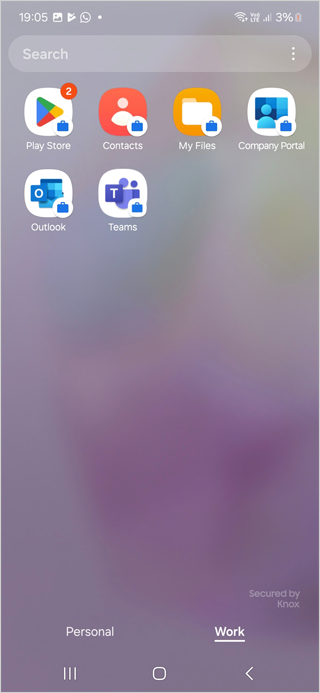
- Tap on Work. Your device will be opened to the corporate data area of your device. This is now a separate location to keep your personal and corporate data as different areas.
- After tapping on Work, your device will land on the Android for Enterprise workspace as shown above. To confirm you are in the correct location, each icon above shows a small suitcase icon at the bottom right side.
- By default, Microsoft Outlook is deployed when installing. You will be able to see the app in the company portal.
- Next, tap Add Account. This will use the corporate account shown.
-
You will be required to set a 4 digit PIN for the Outlook app as shown below. This is a security feature.
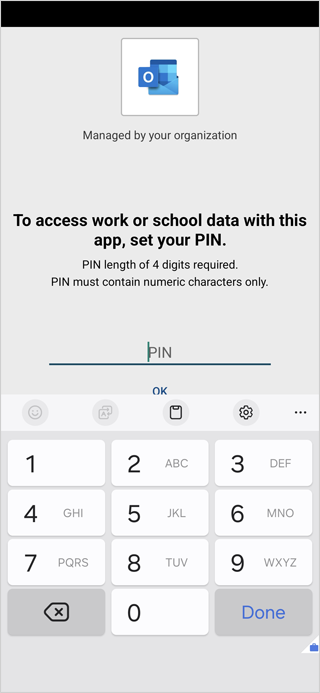
- Enter a 4 digit PIN and tap OK.
-
Next you will have to confirm the PIN as shown below:
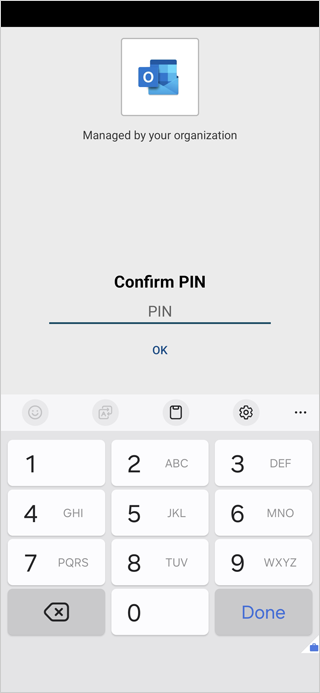
- Re-enter the 4 digit PIN and tap OK.
-
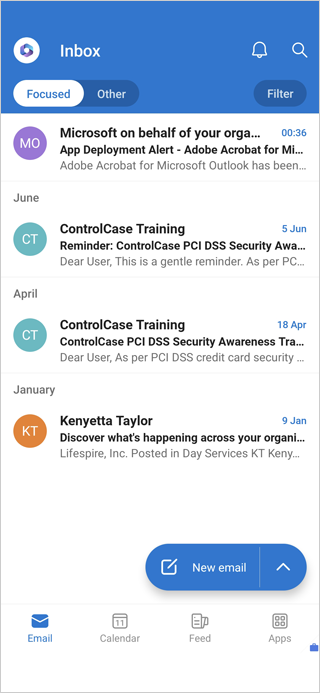
The Outlook App screen will open as shown below: