


 WorkforceONE Mobile App - Quick Start Guide
Download HCMToGo from either the Apple App Store or Google Play Store.
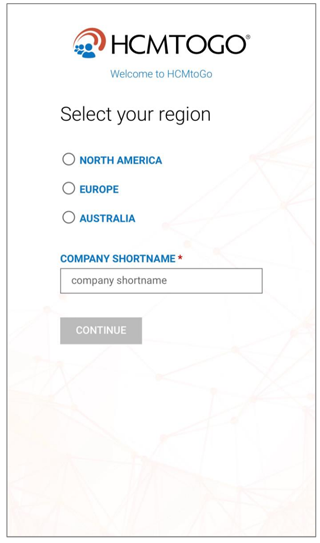
first time you open the app, it will ask for your company shortname. LIfespire’s is PPC3535(not case sensitive).
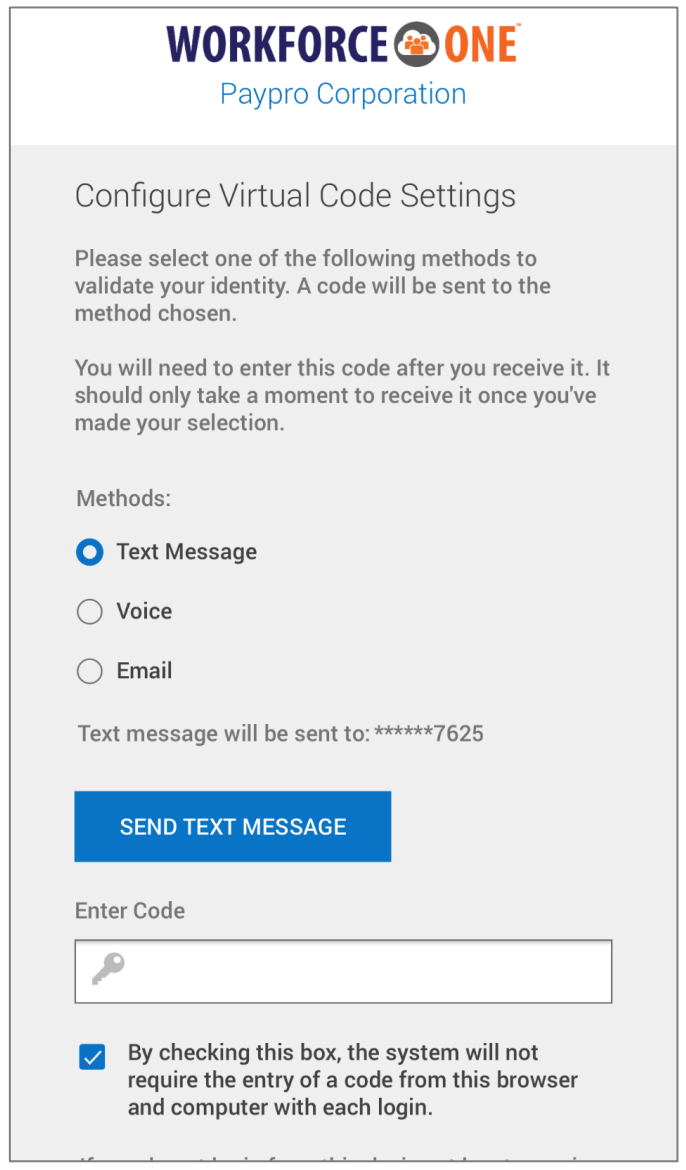
You will then be prompted to receive a virtual authentication code for your first log in, just like the desktop version of WorkforceONE (“WFO”). Be sure to check off the box so that the system remembers your device and does not prompt you for an authentication code the next time that you log on.
Your login credentials are the same Username and Password that you presently use to access WFO from your desktop. Enter those credentials and then click on the LOGIN button.
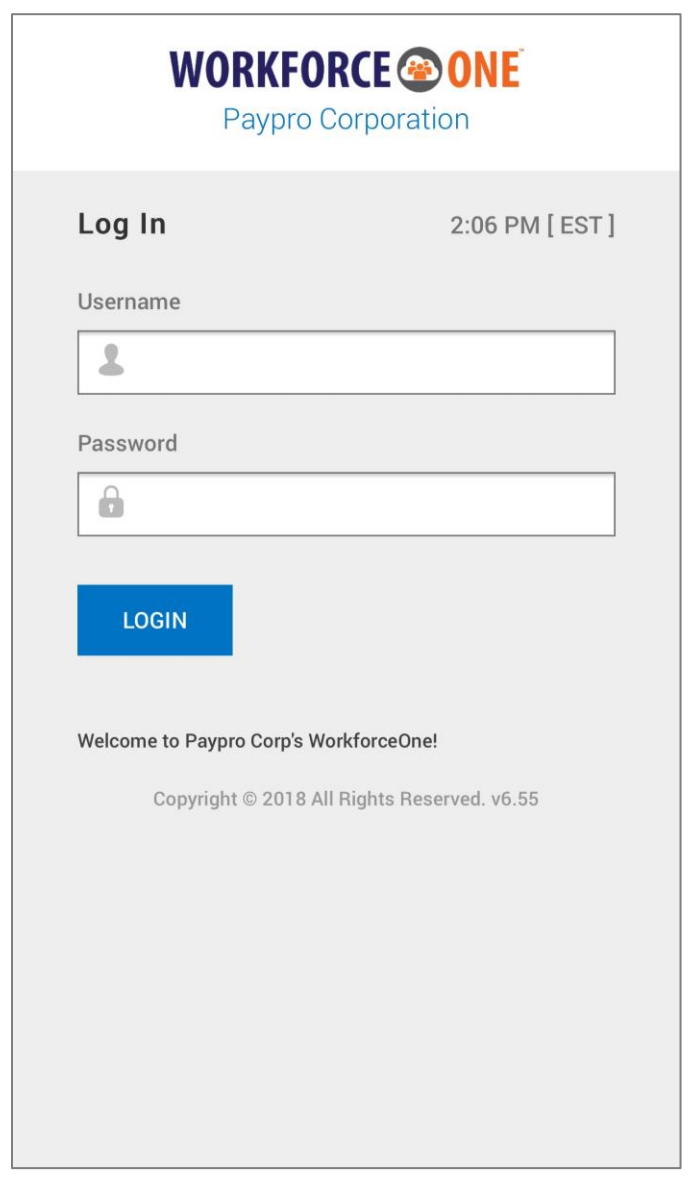
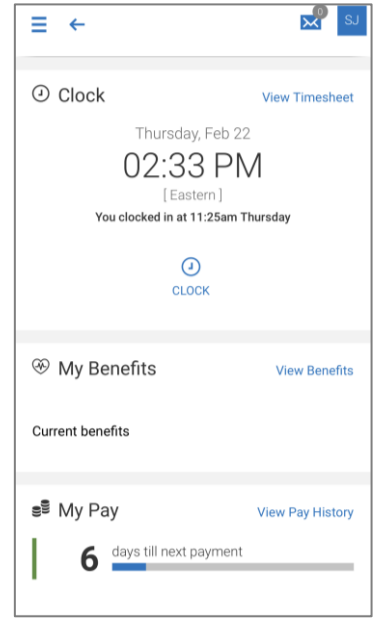
Upon logging in, you will be presented with 6 widgets:
- Clock: here you can punch in/out, see your last punch, and follow the View Timesheet hyperlink to your current timesheet.
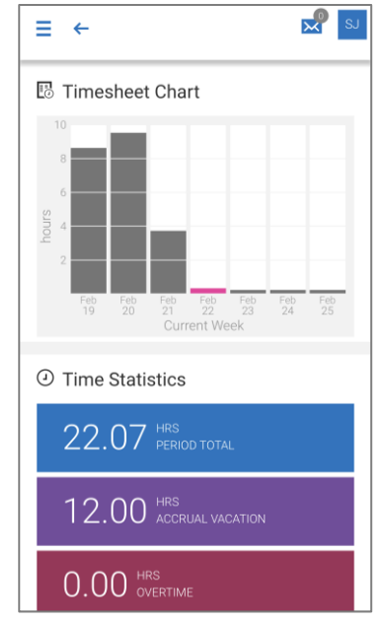
- Time Statistics: this will display your current balances for the type of time shown. The data will update automatically as accrual balances are used.
- Timesheet Chart: this will display, in real time, your total hours for each day of the current week. The current day will display as highlighted. The data will update automatically as time is added to your timesheet.
-
My Pay: you can see a countdown until your next check. By tapping the View Pay History hyperlink,
you can view your pay history, and you can view direct deposits and tax forms.
- You can tap the Download Pay Statement link and the pay statement will display in PDF on a separate page. From there, you can download and save the PDF to your device. To return to your session without having to logout, tap the name of your App at the very top-left of your device
- Announcements: your company may place special announcements on your dashboard. You can view these by tapping on either the Info icon or the arrow. To close the announcement, tap the X or tap Close.
- My Benefits: you can view your current benefit plans, and when available, you can enroll in
benefits during an open enrollment period, or to process a life change event.
- Tap the View Benefits hyperlink to be taken to the page containing your existing benefits and enrollments. Tap the Back arrow at the top of your session to return to the home page, one page at a time; or, you can tap the hamburger icon and tap the Home icon.
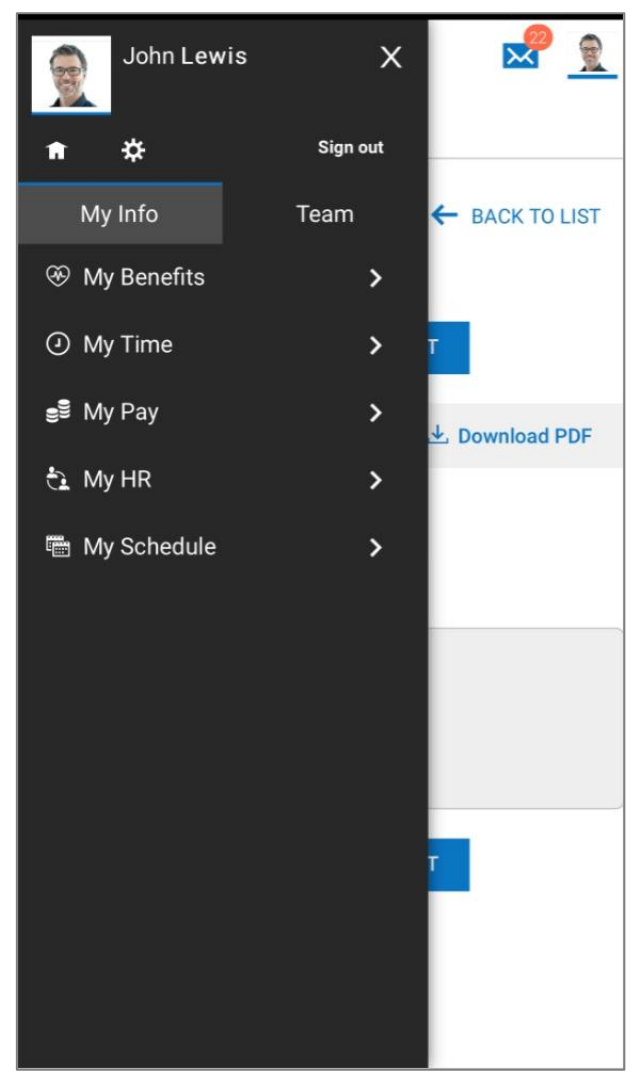
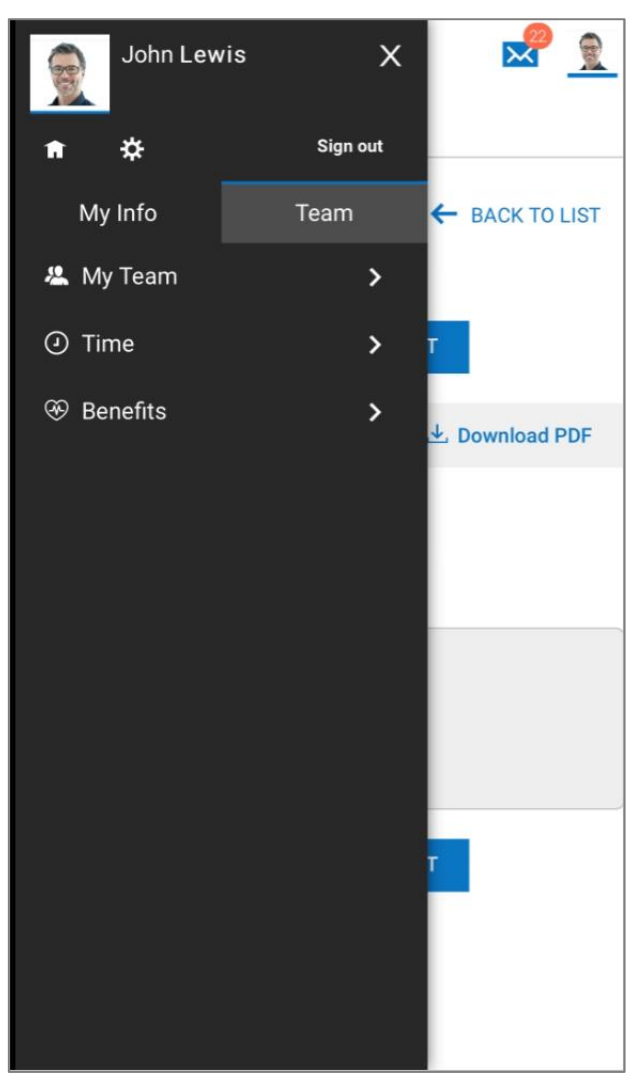
The “hamburger” icon at the top-left of your session can be clicked to open the menu containing all pages that have been configured for your experience. There will be settings such as your Home icon, your Settings Gear icon, your Sign Out link, and other menu options. This menu can be accessed at any time, within any menu. You can also swipe to the right to activate the main menu, though this may vary by device. Once active, it can be closed by tapping the X in the rolled-out menu.
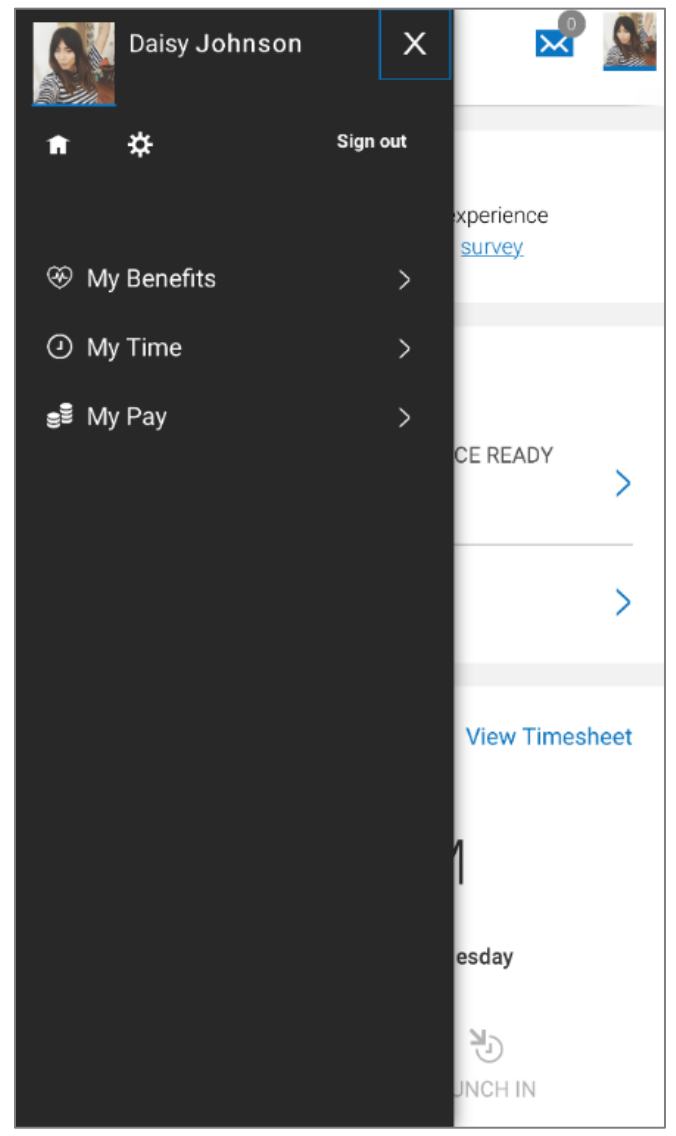
A manager menu will typically have two options; one for their own information, named My Info, and another option for the employees who report to the manager, named Team.