



 WorkforceONE App Tips
- After you login from your phone either the Clock In or Clock Out icon will be available (in blue). In the example below you can see that I clocked in at 9:22am therefore the only option the app gives me now is to Clock Out (this avoids someone clocking in twice or vice versa). If, in the morning when you arrive at your job location you see that only Clock Out is available, this means that you forgot to clock out the day before and the system is waiting for you ro clock out from the previous day’s shift.
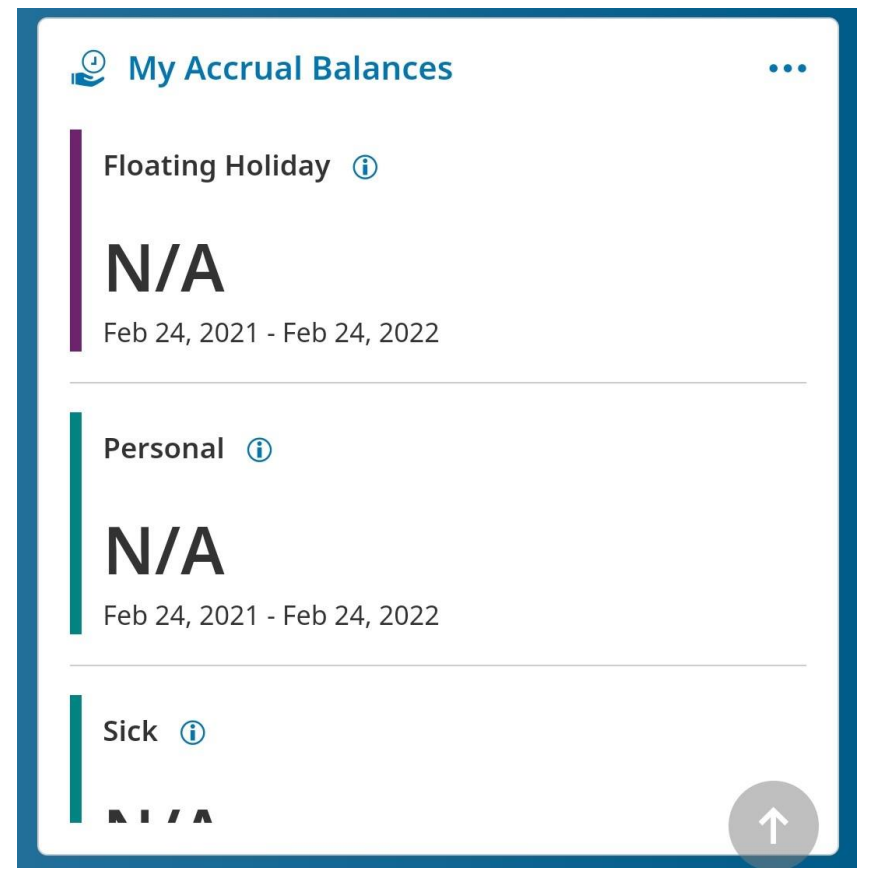
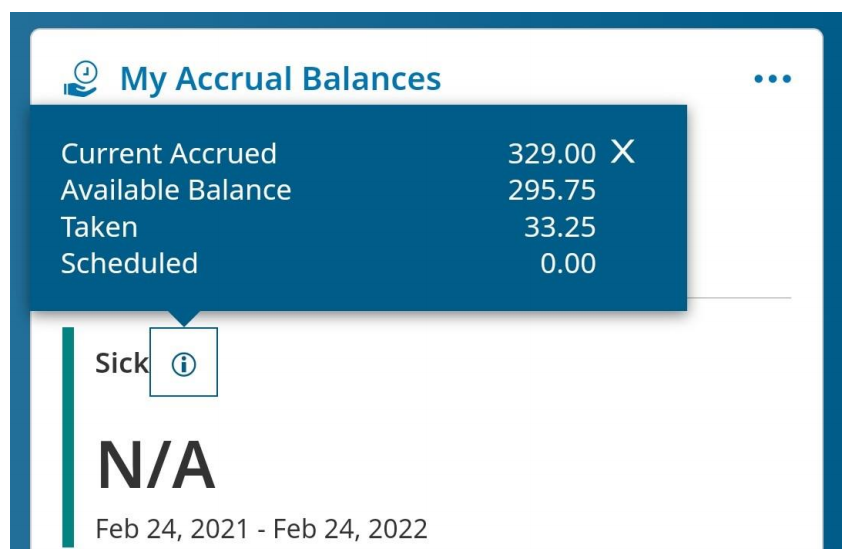
- You will notice that on the landing screen (main screen) you have your Accrual Balances. Even though they do not show anything by tapping in the small info icon (the I in the circle) you get your PTO info, see below.
- By clicking on the “hamburger” menu (the three lines on the top left of the screen) you will see some options. Make sure you click on the middle icon to access My Info.
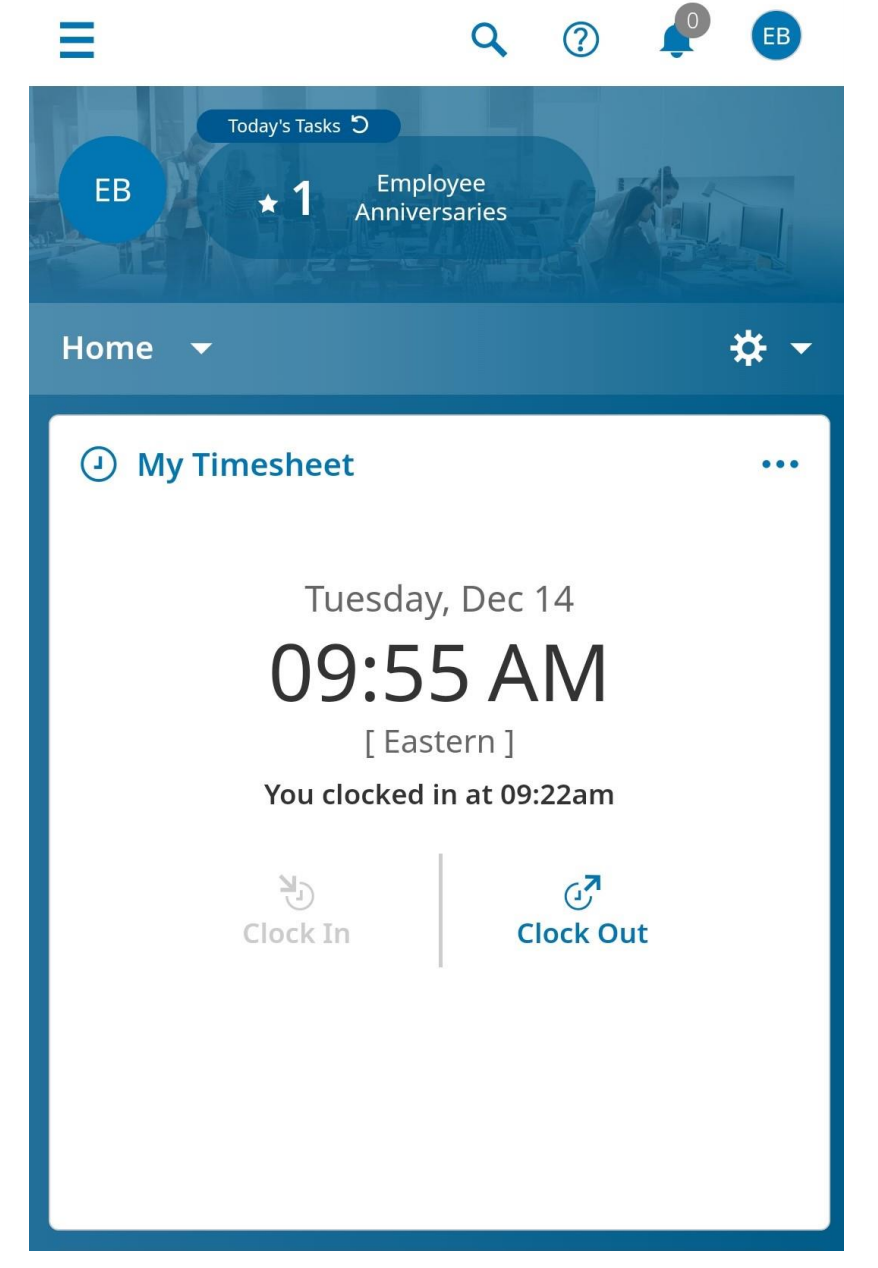
At the end of the two week period click on the My Timesheet link, it will take you to your current timesheet.
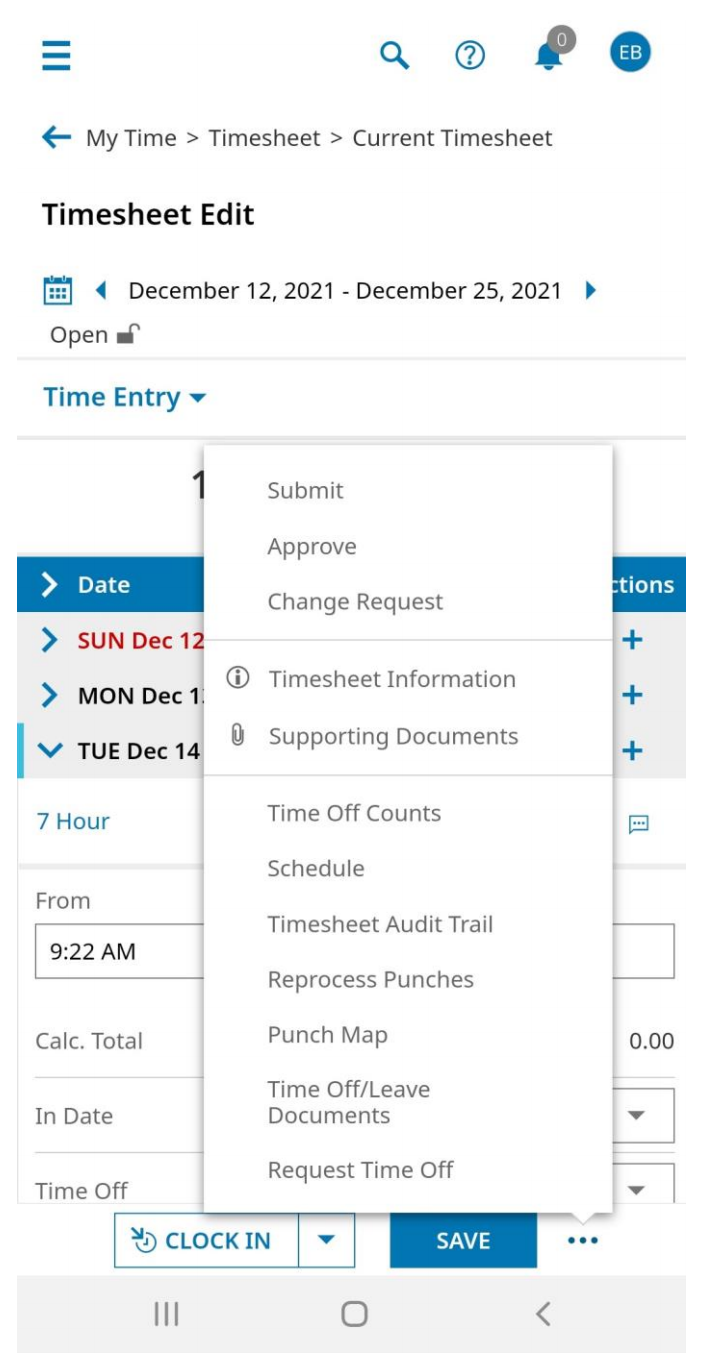
Whithin your current timesheet you can click on the timesheet menu, (the three dots on the bottom right) and the timesheet options come up. The first option is to submit your timesheet. Tap on Submit and your timesheet will be submitted for approval.
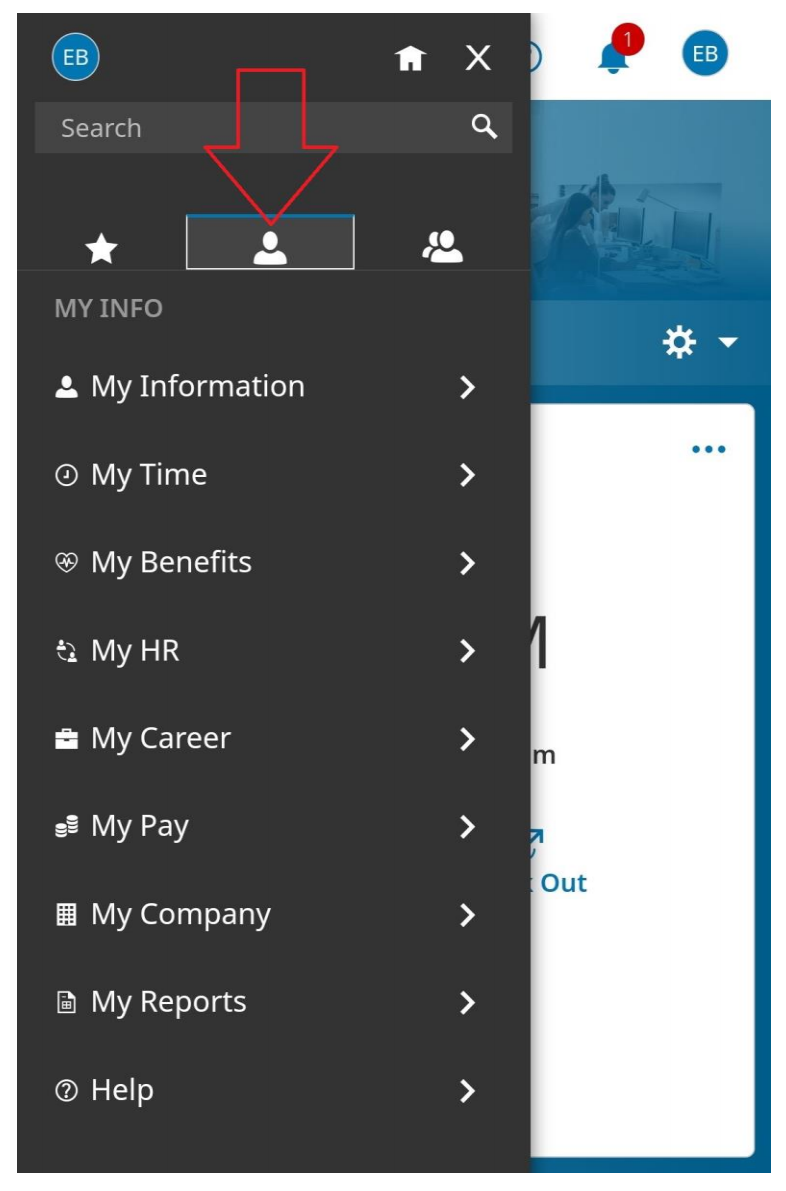
Under My Pay, you can view your paystubs.