



-
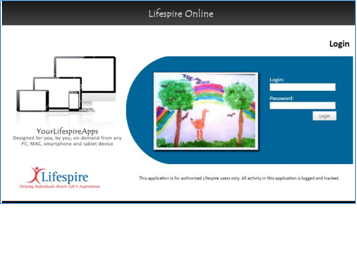
In the login screen, enter your Username and Password.
-
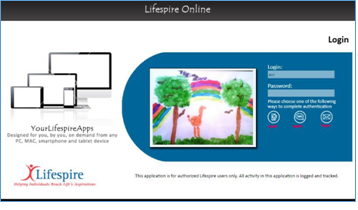
In the next screen, it will ask you to choose from 3-types of authentication to obtain an OTP (“One-TimePassword”).
- “Mobile App” for GoogleAuthenticator.
- “SMS” (Short Message Service) for Texting a code using your mobilephone.
- “Email” for using your (Lifespire) email to receive acode.
Mobile App
-
For “Mobile App”, click on the icon and on the next screen you will be asked to enter the OTP from your Google Authenticator app on yourphone.
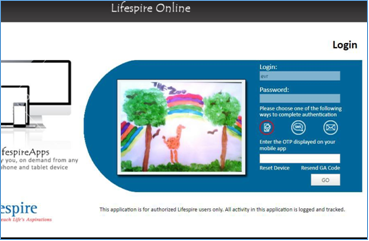
This must be setup prior to logging in into LifespireOnline.
For help in setting up QR Code on your phone please go to “Help Guide For Setting Up QR Code on Google Authenticator On Mobile Phone” in the latter section on this document. -
Using your mobile phone, launch the Google Authenticatorapp.

-
3) The code changes every 30-seconds. While the code is in “blue” use it to type into LifespireOnline, because you have about 25-seconds before it turns to “red”. Once it turns to “red”, you have about 5-seconds before it changes to a new code. So when it’s “red”, its best to wait until it turns to “blue” again so you have more time to copy the code over to LifespireOnline.


- Type in the OTP code into LifespireOnline, then click on“GO”.
- If successful, you will be sent to the landing page insideLifespireOnline.
*Do not click on “Resend GA Code” as this will eraseyour existing Google Authenticationcode and you will be emailed a new QR Code to be setup/added into the GoogleAuthenticator. Do not click on this unless you absolutely need to.
SMS
-
Using SMS, click on the icon and on the next screen you will be asked to enter the OTP sent to your mobile phone as a text.
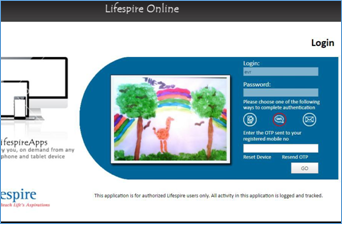
- Type in the OTP code (texted-code) from your mobile phone onto the screen, thenclick “GO”. If successful, you will be sent to the landing page insideLifespireOnline.
-
Using Email, click on the icon and on the next screen you will be asked to enter the OTP sent to you email.
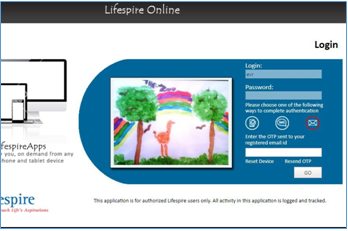
- Type in the OTP code from your email onto the screen, then click “GO”. If successful, you will be sent to the landing page inside LifespireOnline