

-
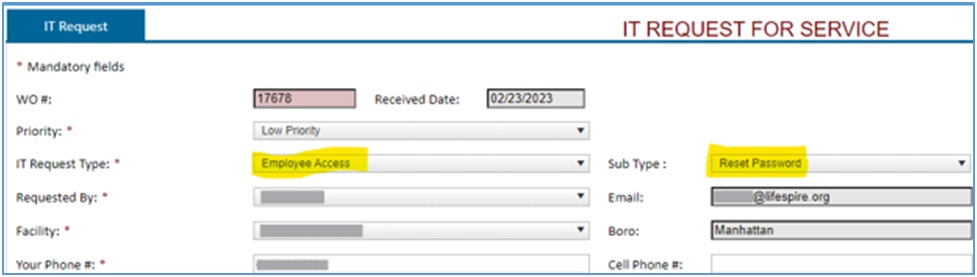
When creating an IT Request for a “Reset Password”, fill out the required fields (*), put as much detail as possible regarding the issue.Make sure to select “Reset Password” from the “Sub Type” so the request will be associated with “Password Reset Request Form”.
-
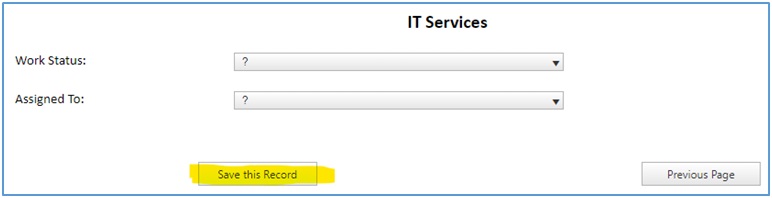
When finished, click “Save this Record”.
-
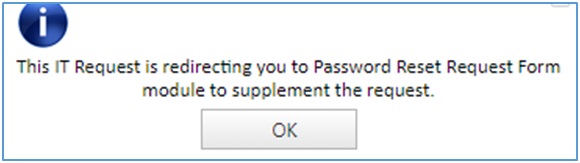
A popup message will show up saying you will be redirected to “Password Reset Request Form” module.
-
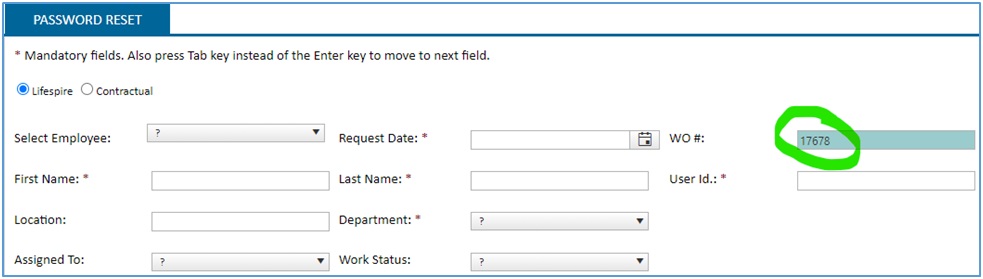
When the “Password Reset Request” module comes up, you will notice the same “Work Order” number (WO#) from the “IT Request”. This links the specific “IT Request” with this specific “Password Reset Request” record.
Fill out all required fields (*), all info about the user.
-
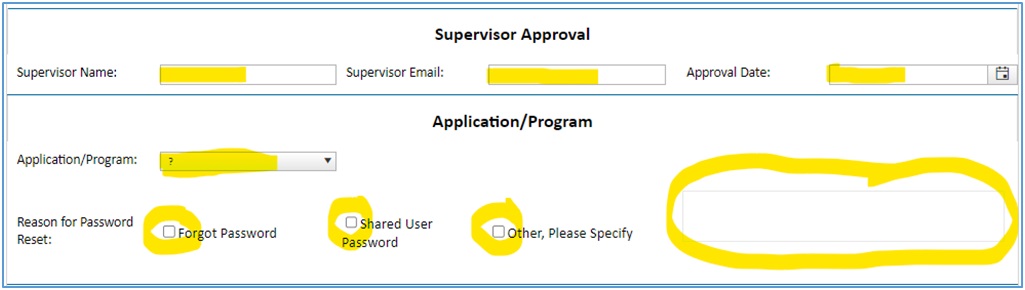
Fill out Supervisor Approval info.
Select appropriate “Application/Program”.
Specify the Reason for the Password Reset. If “Other”, please write more detail about this.
-
When finished, click “Save this Request”.
- You’ve just completed an IT Request for Password Reset.

Virtual Assistant


