

-
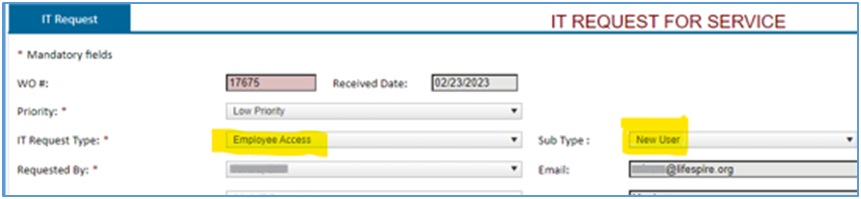
When creating an “IT Request” for a “New User”, fill out the required fields (*), put as much detail as possible regarding the issue. Make sure to preselect “Employee Access” from “IT Request Type”. Then select “New User” from the “Sub Type” so the request will be associated with “Assets Access Details” form.
-
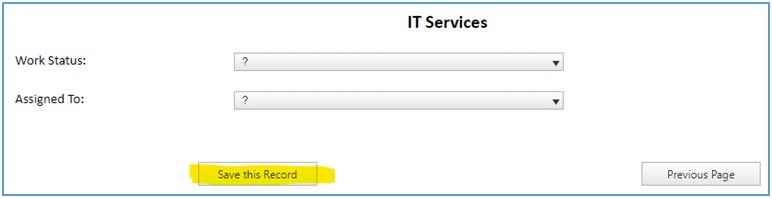
When finished, click “Save this Record”.
-
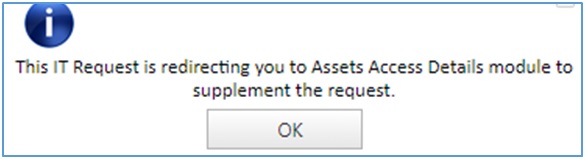
A popup message will show up saying you will be redirected to “Assets Access Details” module.
-
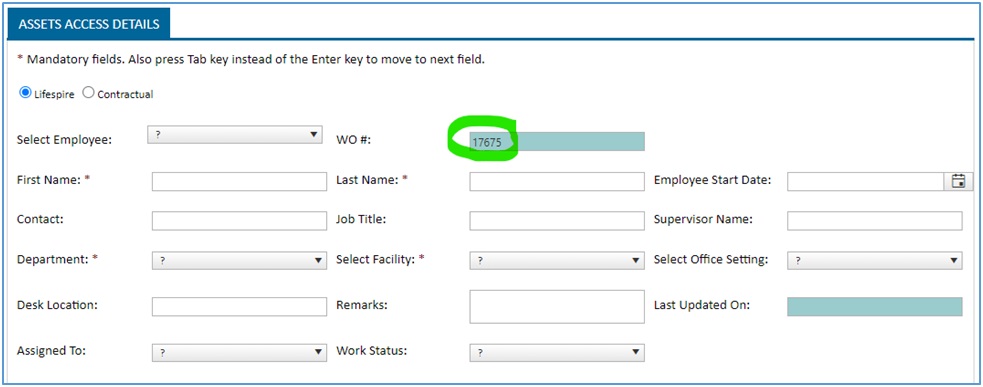
When the “Assets Access Details” module comes up, you will notice the same “Work Order” number (WO#) from the “IT Request”. This links the specific “IT Request” with this specific “Assets Access Details” record.
Fill out all required fields (*), all info about the user.
-
When finished, click on “Save this Assets”. But we’re not done yet…

-
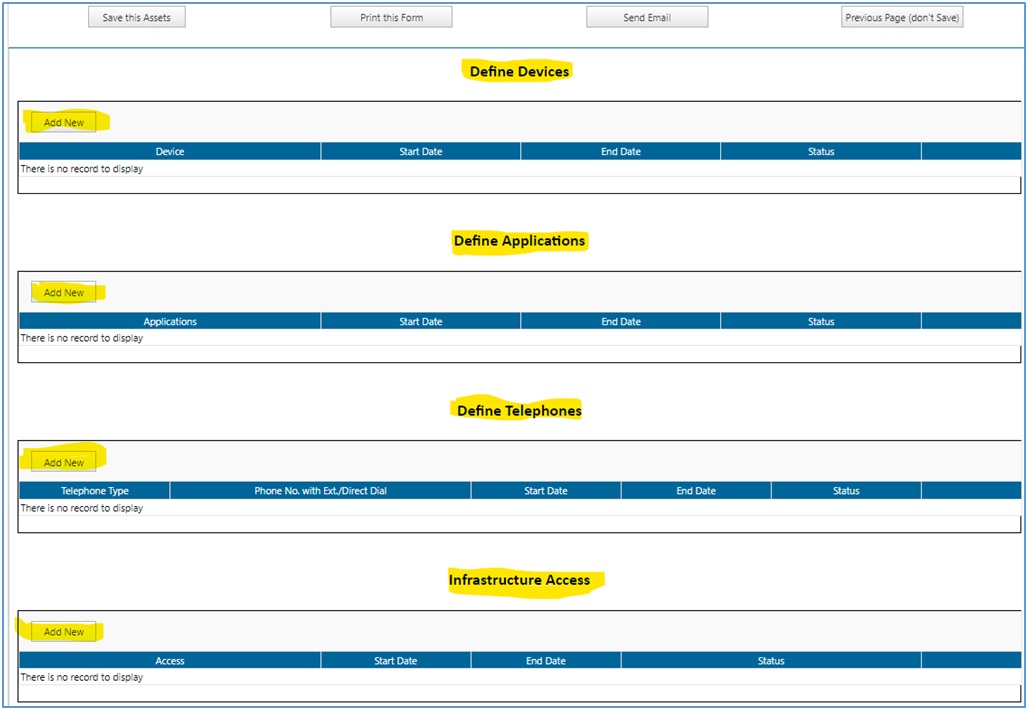
Below that, you’ll need to specify items that apply to the user. Do they need Devices, Applications, Telephones and Infrastructure Access. To start entering each item, click on “Add New”
-
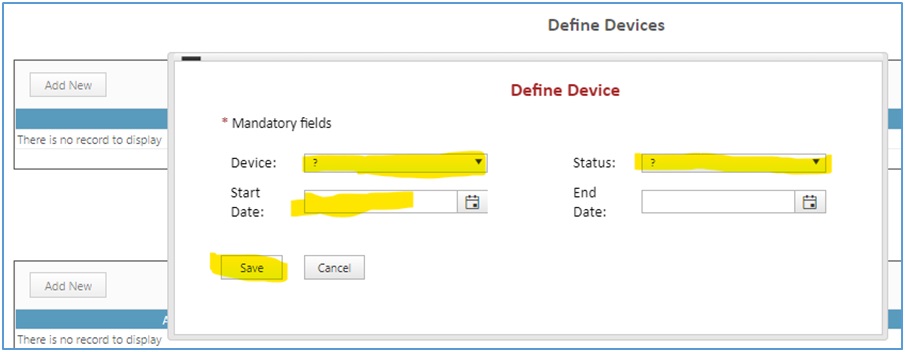
As the popup window opens, select items applicable from the dropdowns and put Start Date. Then click “Save”.
Other items will show similar popups so just select the relevant items to complete them.
- You’ve just completed an IT Request for New User.

Virtual Assistant


