



- An email will be sent to the user with a specific QR Code (unique to each user) that they can use to add to their Google Authenticator. For Lifespire users, you would need to open your email using the web-email on your computer. This means opening your internet browser (Edge, Firefox, or Google Chrome), then put this website https://Outlook.Office365.com into the web address box and login. This will display the QR Code codeproperly.
-
Download “Google Authenticator” on your mobilephone.
-
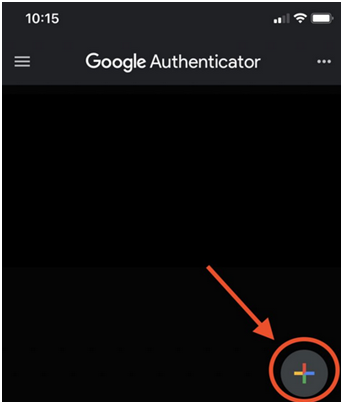
Open “Google Authenticator”, then click on the ‘plus’ (+) sign at the bottom-right of the screen.
-
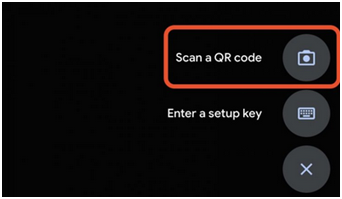
On the next screen, select “Scan a QR Code”. This will launch the camera app and is ready toscan.
-
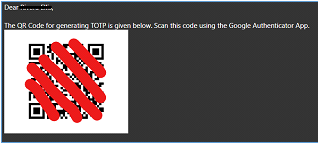
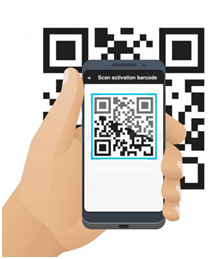
Aim the phone so that the supplied QRCode from the email is shown in them iddle of the phone screen. Below is a sample QR Code, crossed out for security purposes.
-
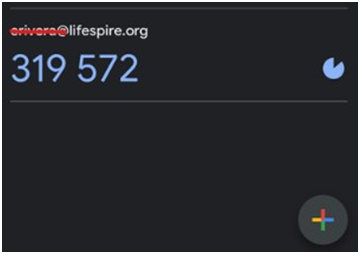
Upon completion, it will add achanging-code within the Google Authenticator appwith the user’s email address. This code is the one you use for the 2-Factor Authentication under “MobileApp”.
*Using Microsoft Outlook is not advisable as security measures in place prevent the proper display of the QR Code within Outlook. So please do not use Outlook.